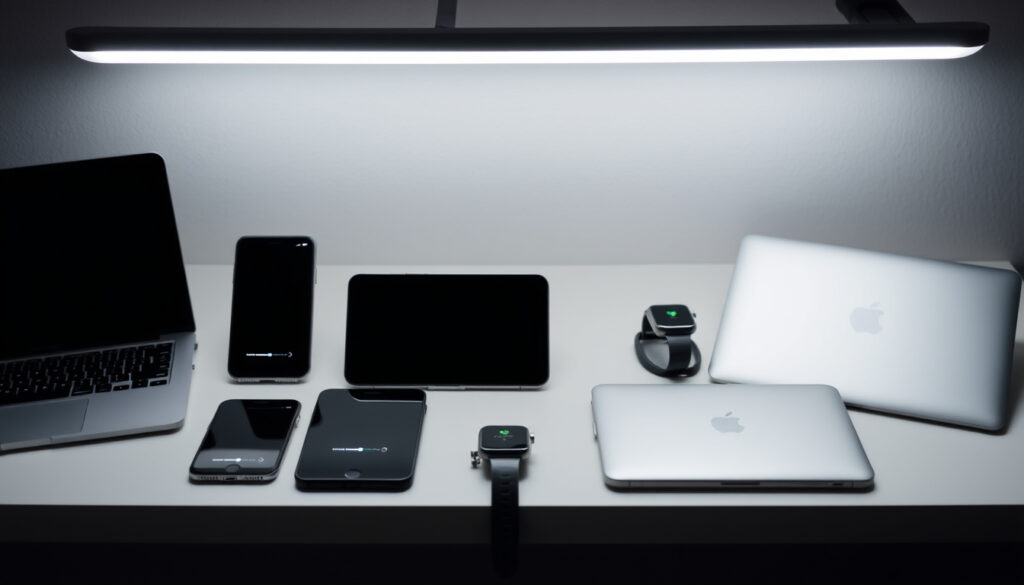
How to Disable Notifications – Guide for All Devices
Managing notifications across devices has become essential for maintaining focus and preserving battery life. Whether you are using Android, iPhone, Windows, or a web browser, each platform offers specific controls to silence or disable alerts entirely. This guide walks through the most effective methods for turning off notifications, addressing both permanent and temporary solutions across all major operating systems.
The ability to control what interrupts your day varies significantly between platforms. Some users prefer complete silence, while others want to quiet only certain applications. Understanding where these settings live and how they interact with system-wide controls can save time and reduce frustration.
How to Disable Notifications on Android
Android devices provide multiple pathways to manage notifications, with settings accessible through both app-level and system-level controls. The method chosen depends on whether you want to silence a single application or disable all alerts across the device.
Long-press any notification to reveal instant controls, including options to turn off alerts for that specific app without navigating through settings menus.
For a comprehensive approach, open Settings > Apps > Notifications to view every application that can send alerts. Each app listing displays its current permission status, allowing you to toggle individual apps on or off with a single tap.
Android also includes a Do Not Disturb mode accessible by swiping down from the top of your screen. Activating this mode suppresses all notifications except those from contacts you designate as exceptions. The feature can be scheduled to activate automatically during meetings or bedtime hours.
For users seeking additional controls, Digital Wellbeing offers time-based limits and focus tools. This built-in feature tracks notification frequency and can enforce quiet periods without requiring manual activation each time.
Disabling Notifications for Specific Apps
Individual app notification controls live within each application’s settings page. Navigate to Settings > Apps, select the desired application, and tap Notifications. From this screen, you can block all notifications, show only silent alerts, or allow banners while blocking the notification drawer.
Some applications create notification channels, which are subcategories of alerts within the same app. For example, a messaging app might separate direct messages from group notifications. Each channel can be configured independently, giving precise control over what types of alerts reach your device.
Troubleshooting Persistent Notifications
Occasionally, notifications continue appearing despite disabled settings. This typically occurs when an app has been granted special permissions or when a system update has reset preferences. Checking Settings > Notifications > Recently sent reveals which applications have been most active, providing a quick path to identifying problematic apps.
| Method | Time Required | Scope | Reversibility |
|---|---|---|---|
| Individual App Settings | 30 seconds per app | Single application | Instant via settings |
| Do Not Disturb | 5 seconds | All except exceptions | Manual or scheduled |
| Digital Wellbeing | 2 minutes setup | Time-based limits | Edit or remove limits |
| Notification Dots | 30 seconds | Visual badges only | Toggle in app settings |
| System-Wide Toggle | 10 seconds | All notifications | Single toggle |
How to Turn Off Notifications on iPhone or iPad
Apple consolidates notification management within the Settings > Notifications panel on iOS devices. This central location displays every installed app that can send alerts, with preview options and delivery timing controls for each entry.
Temporary Silence with Focus Modes
iOS offers sophisticated Focus modes that go beyond simple Do Not Disturb functionality. Rather than disabling notifications entirely, Focus modes filter incoming alerts to show only those from selected contacts or apps. The feature supports multiple profiles, including Work, Personal, and Sleep modes, each with distinct notification rules.
Activating a Focus mode requires opening Control Center and tapping the moon icon, or using Siri voice commands. Scheduling Focus modes ensures consistent protection during regular activities without requiring daily manual activation.
Chrome push notifications are disabled by default on iOS devices. Users who previously enabled this feature may find Chrome listed in their notification settings, where it can be toggled off if needed.
Controlling Notification Previews
Beyond silencing alerts, iOS allows users to hide notification content from the lock screen and banners. The Show Previews setting offers three options: Always, When Unlocked, and Never. Selecting Never ensures sensitive information remains private even when the device is unattended.
How to Manage and Disable Notifications on Windows
Windows 10 and Windows 11 place notification controls within the system settings architecture. The primary access point is Settings > System > Notifications, where users find a master toggle for all app notifications alongside individual controls for each installed application.
The notifications panel includes additional options for controlling how alerts appear. Users can enable or disable notification sounds, choose whether notifications appear on the lock screen, and decide whether Windows Tips suggestions should display. These granular controls help balance staying informed against reducing interruptions.
For applications installed through the Microsoft Store, notification settings may also exist within the apps themselves. Checking both system settings and individual app preferences ensures comprehensive coverage when attempting to silence a particular program’s alerts.
Quick Settings and Action Center
Windows includes an Action Center that aggregates notifications in a slide-out panel. While this does not disable alerts, it provides a centralized location for dismissing accumulated notifications. The Focus Assist feature, accessible through Action Center, suppresses all notifications during designated periods, similar to Do Not Disturb on mobile platforms.
How to Stop Push Notifications in Chrome and Other Browsers
Web browsers maintain their own notification systems independent of device settings. Chrome, the most widely used browser, allows individual websites to request permission to send push notifications. Managing these permissions requires navigating to the browser’s site settings rather than relying on operating system controls.
To disable website notifications in Chrome, open the browser and access Settings > Privacy and security > Site settings > Notifications. The top option, labeled Sites can ask to send notifications, serves as a master control. Disabling this feature prevents any website from requesting notification permission going forward.
Chrome notification settings documentation confirms that selecting Don’t allow sites to send notifications blocks all incoming alerts without affecting notifications from installed Progressive Web Apps.
Managing Individual Website Permissions
For users who prefer selective blocking, Chrome’s notification settings include an exceptions list. Each website can be assigned to one of three categories: allow, block, or ask. This three-tier system provides flexibility for users who want some notifications while blocking others entirely.
Android users running Chrome have an additional layer of control. Within Chrome’s settings, a separate Show notifications toggle exists independently of site permissions. Disabling this setting prevents Chrome notifications from reaching the device even when individual sites have been granted permission.
Browser extensions can sometimes override notification settings or generate their own alerts. If notifications persist after adjusting browser settings, reviewing installed extensions and disabling suspicious ones may resolve the issue.
System-Level Browser Notification Controls
Disabling notifications at the browser level does not necessarily remove system-level notifications that some web applications generate. On Mac systems, notifications permissions are managed through System Settings > Notifications, where browsers appear as separate entries. Windows users find similar controls under Settings > System > Notifications, with individual app toggles including browser entries.
Clearing site permissions through chrome://settings/content/notifications removes all saved notification preferences. This reset forces users to grant fresh permissions if notifications are later desired, effectively starting from a clean slate.
How to Disable Notifications Across All Apps and Devices
For users seeking complete silence across multiple platforms, a systematic approach works best. Begin by disabling notifications at the system level, then address individual applications that may override system defaults with their own permission systems.
Each device requires independent configuration because notification settings are stored locally rather than synchronized across platforms. A Windows PC, Mac laptop, Android phone, and iPad all maintain separate notification databases. Changes made on one device do not transfer to others, meaning the process must be repeated for each piece of hardware.
Understanding Push Notifications
Push notifications differ from standard in-app alerts in their delivery mechanism. When an application sends a push notification, it transmits data through servers operated by the device manufacturer or browser developer before reaching your screen. This architecture allows alerts to arrive even when the originating application is closed.
Disabling push notifications requires addressing both the application requesting permission and the platform-level service handling delivery. A notification blocked at the app level may still arrive through alternative channels if system permissions remain active.
Temporary Versus Permanent Solutions
Scheduled quiet modes offer an alternative to permanent notification disabling. Android’s Do Not Disturb, iOS Focus modes, and Windows Focus Assist all support automatic activation during specified hours. These solutions preserve the ability to receive urgent notifications while maintaining silence during routine periods.
For users who want notifications only from essential contacts, most platforms support priority or starred contact lists. Notifications from these designated individuals bypass silent modes, ensuring critical messages still arrive while promotional and social alerts remain suppressed.
Why Disable Notifications?
The decision to disable notifications stems from several practical concerns. Research consistently shows that frequent interruptions reduce cognitive performance and increase stress levels. Each notification presents a potential distraction, fragmenting attention and making sustained focus more difficult to achieve.
Battery conservation represents another significant factor. Active notification systems require network connectivity and processing power, both of which drain battery reserves. Users monitoring power consumption often find that reducing notification frequency extends device runtime between charges.
Privacy considerations also motivate notification management. Lock screen notifications can expose sensitive information to observers, and some users prefer to review messages on their own terms rather than having content appear unexpectedly. Configuring notification previews and delivery timing addresses these concerns while maintaining access to important alerts.
Sources and Expert Guidance
Technical support documentation from major platform developers provides the foundation for these recommended procedures. Google maintains comprehensive notification guides for both Android and Chrome users, with platform-specific instructions for each operating system. Apple’s support resources cover notification management across iOS and macOS, while Microsoft’s documentation addresses notification controls in Windows.
“For latest OS updates (e.g., Android 15, iOS 18+), menus remain similar per 2024 sources; verify in-app if interfaces shift.”
Multiple tech support guides, 2024
Third-party technology publications including Avira, Guard.io, and Kinsta provide additional troubleshooting guidance and alternative methods for managing notification settings across platforms.
Summary
Disabling notifications requires different approaches depending on your device and the specific applications in question. Android users should focus on app-level settings within Settings > Apps > Notifications, while iPhone owners find comprehensive controls under Settings > Notifications with Focus modes offering flexible scheduling. Windows users navigate to Settings > System > Notifications, and Chrome browser users access notification controls through Settings > Privacy and security > Site settings. Remember that settings are device-local, so changes require repetition across each piece of hardware you use.
Frequently Asked Questions
How do I turn off all app notifications at once?
Most platforms offer a master notification toggle in system settings. On Android, navigate to Settings > Notifications and disable the main toggle. iOS users can enable Focus mode to suppress all notifications except those from designated contacts. Windows provides a similar master control under Settings > System > Notifications.
Why am I still receiving notifications after disabling them?
Several factors can cause persistent notifications. App-specific permission systems may override system settings. Some applications create notification channels that require individual disabling. Additionally, system updates occasionally reset notification preferences to defaults. Try clearing site permissions in Chrome or checking for notification channels within problematic apps.
What are push notifications and how do they differ from regular alerts?
Push notifications are messages sent through servers operated by device manufacturers or browser developers, allowing delivery even when the originating app is closed. Regular alerts are generated by apps running actively on your device. Disabling push notifications requires addressing both app permissions and platform-level notification services.
How can I temporarily silence notifications without disabling them permanently?
All major platforms offer scheduled quiet modes. Android includes Do Not Disturb, iOS provides Focus modes with scheduling options, and Windows features Focus Assist. These tools suppress notifications during specified periods while preserving the ability to receive alerts at other times. Digital Wellbeing on Android and Screen Time on iOS offer additional time-based controls.
Do notification settings sync across my devices?
Notification preferences are device-local and do not synchronize across different platforms. An Android phone and Windows PC maintain separate notification databases. iCloud syncs notification settings between Apple devices, but cross-platform synchronization does not occur. Each device requires independent configuration to achieve consistent notification management.
More related posts
 How to Draw a Person: Step-by-Step Guide for Beginners
 Stockton Rush: Life, Titan Implosion, and Legacy
 New Zealand vs Sri Lanka Match Scorecard: T20 WC Super 8s
 What Is Kinetic Energy? Definition, Formula & Examples
 2000 Yen to CAD – Live Rate, Trends and Best Tips
 Claude Dubois: Biography, Songs, Age, Awards & Fun Facts
 Lil Uzi Vert: Pronouns, $24M Diamond, Hospitalization
 Luis Enrique: Barcelona Treble, Family Tragedy & Messi Clash